<div style='padding:0.0px 0.0px;text-align: center; display:block;'>
<img src='https://content.leadermarketing.com.au/assets/uploads/Clevetura/PSKEY2/page1-a.png' style='width: 100%; height: auto;'>
<img src='https://content.leadermarketing.com.au/assets/uploads/Clevetura/PSKEY2/page1.jpg' style='width: 100%; height: auto;'>
<img src='https://content.leadermarketing.com.au/assets/uploads/Clevetura/PSKEY2/page3.png' style='width: 100%; height: auto;'>
<img src='https://content.leadermarketing.com.au/assets/uploads/Clevetura/PSKEY2/page4.png' style='width: 100%; height: auto;'>
</div>
KEY FEATURES
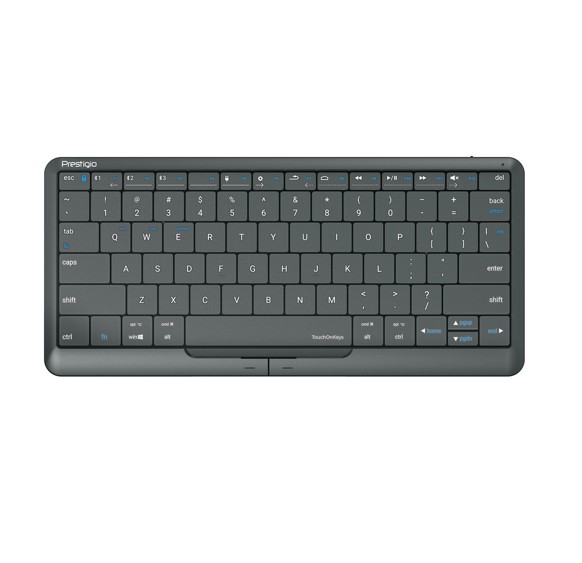
• Familiar gestures
You can control the cursor, scroll, click and zoom just like you would on a regular touchpad, or by
physically clicking the left and right buttons.
• Adjust the touchpad area
Have the touchpad on the right or left hand side of the keyboard – choose whatever is most convenient
for you.
• Swipe
Change the volume and rewind videos by sliding left and right on the top row of the keyboard.
• Press to type
The keyboard allows for an easy typing experience. The keys feel similar to that of a laptop.
• Application
Get better user experience with the Clevetura app. Customize your keyboard to suit your needs.
• Smart switch
Switching between keyboard and touchpad modes is automatic. Click&Touch 2 easily recognises which
mode it being used.
| category_map_id | 1529 |
| price_exc | 117.72 |
| lead_note | Unavailable |
| source_updated_at_snapshot | 2026-09-25T09:14:05.637828 |